
How to Interact with Candidates over LinkedIn from TalentRiver
Reach out to candidates personally, track your communication, and stay organized - all without leaving TalentRiver.
With the blue Connect button, you can send LinkedIn connection requests, InMails, or direct messages, and even include candidates in automated sequences - keeping your outreach centralized and efficient.
Use the Connect Button to Reach Candidates
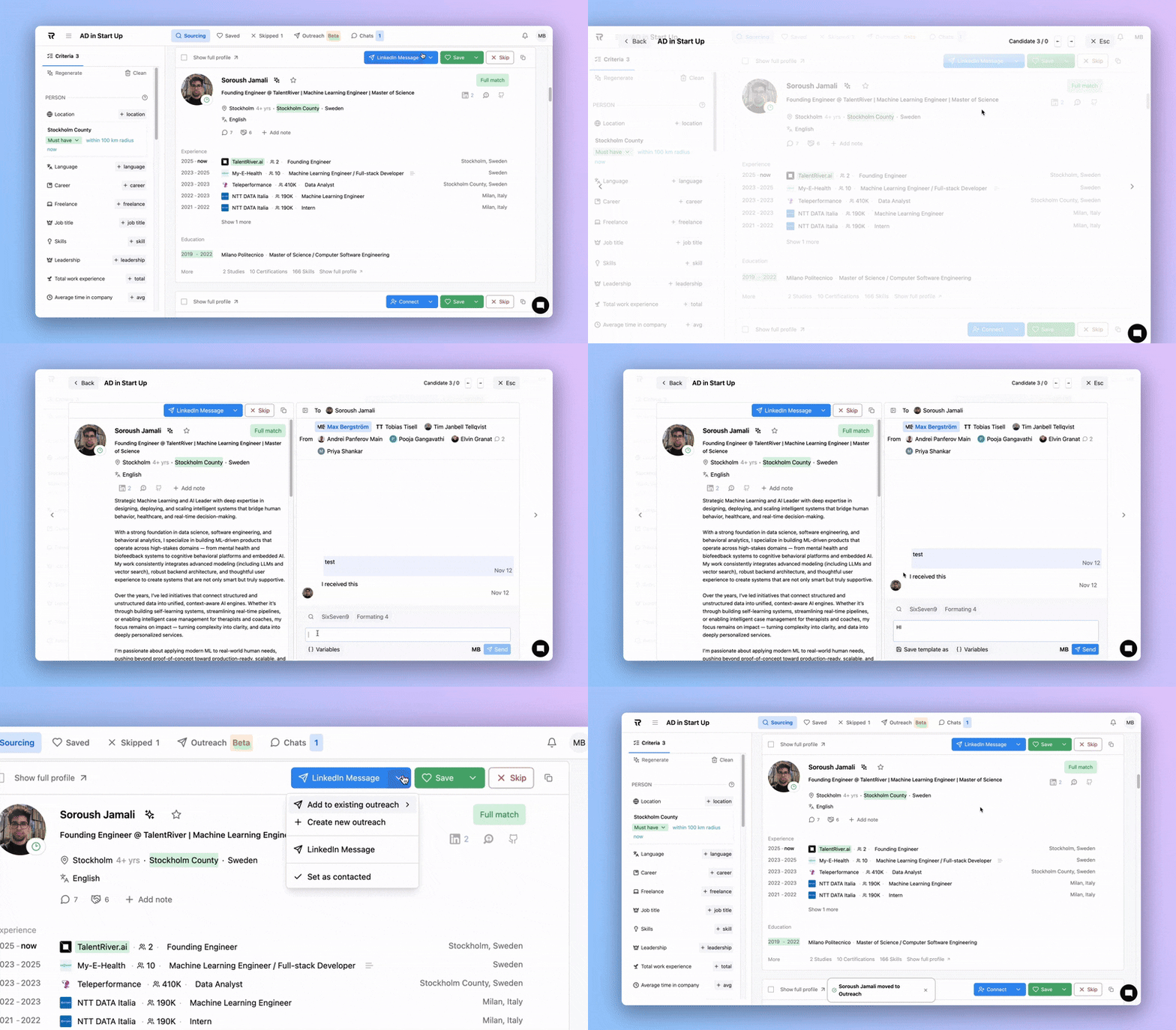
Open the candidate card for the person you want to contact.
Click the blue Connect button in the top-right corner.
If you are not connected, it shows “Connect”.
If you are already connected, it shows “Message”.
Click the arrow next to the button to see more options:
Send a LinkedIn connection request - via the TalentRiver Chrome Extension
Send an InMail - without leaving TalentRiver
Send a direct message - if already connected
Add to an Outreach Sequence - include the candidate in an automated flow
Set as Contacted - mark the candidate as contacted if you reached out by email, phone, or LinkedIn outside TalentRiver
Why Use the Connect Button?
Track your outreach - prevent contacting the same candidate multiple times
Stay organized - all communication is logged and visible in TalentRiver
Save time - send messages directly from TalentRiver, no tab-switching needed
Seamless LinkedIn integration - all actions are handled through the TalentRiver Chrome Extension
Make sure you have the TalentRiver Chrome Extension installed and your LinkedIn account connected to enable direct messaging and outreach from TalentRiver.