
How to Exclude Candidate Profiles
Sometimes you need to remove certain profiles from your search - whether it’s unwanted experience, the wrong seniority, or candidates outside your target market. With Exclude, TalentRiver filters out candidates who match a specific criteria, tag, job title, or attribute.
This works like NOT logic in Boolean search:
If a candidate matches the excluded criteria, they will not appear in your results.
Step-By-Step
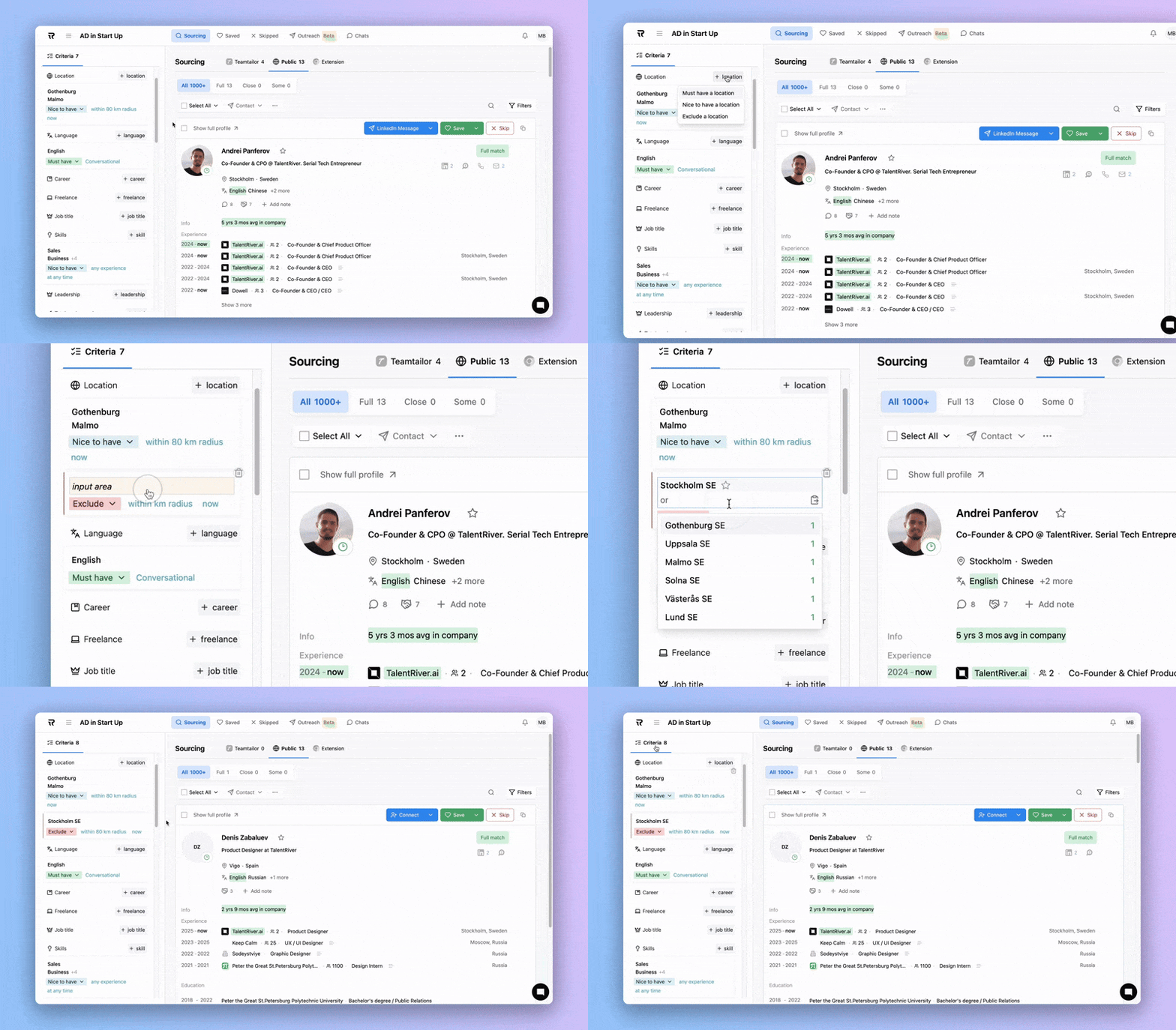
How to Exclude a Criteria
Open the Criteria tab in your Assignment (sidebar to the left).
Choose the property you want to add as a filter.
Click + "property" to open the dropdown (e.g + location, + career, + language).
Select Exclude "property" (e.g Exclude a location, Exclude a career, Exclude a language).
Add the criteria - TalentRiver will instantly remove matching candidates from your list.
That's it. Your results now exclude any candidate who meets that specific condition.
When to use Exclude
Exclude is especially helpful when you want to tighten your search and avoid profiles that don’t fit your Assignment. You can for example exclude:
Locations - e.g., remove candidates outside your target region
Job titles - e.g., exclude “Manager” if you're only searching for individual contributors
Tags imported from your ATS
Experience that doesn’t align with your target (e.g., too senior or too junior)
Industries or backgrounds that aren’t relevant
Previous employers you want to avoid
Skills that would disqualify a candidate for your role
Exclude helps you stay focused on the right profiles by removing noise from your search.