
How to Filter by Education and Graduation
TalentRiver lets you filter candidates based on education and graduation details, including school, degree level, field of study, and graduation year.
This helps you find candidates with the right academic background for your Assignment.
Step-by-Step: How to filter by education and graduation
Open the Criteria tab in your Assignment (left sidebar).
Scroll down to "Education" properties and click + School to add a school filter.
Search for the school name and select one or more options.
Combine it with a degree level, such as Bachelor, Master, or PhD.
Choose the field of study or subject area the candidate should ideally have completed.
Optionally, add a graduation year filter to target candidates who finished their studies within a specific timeframe.
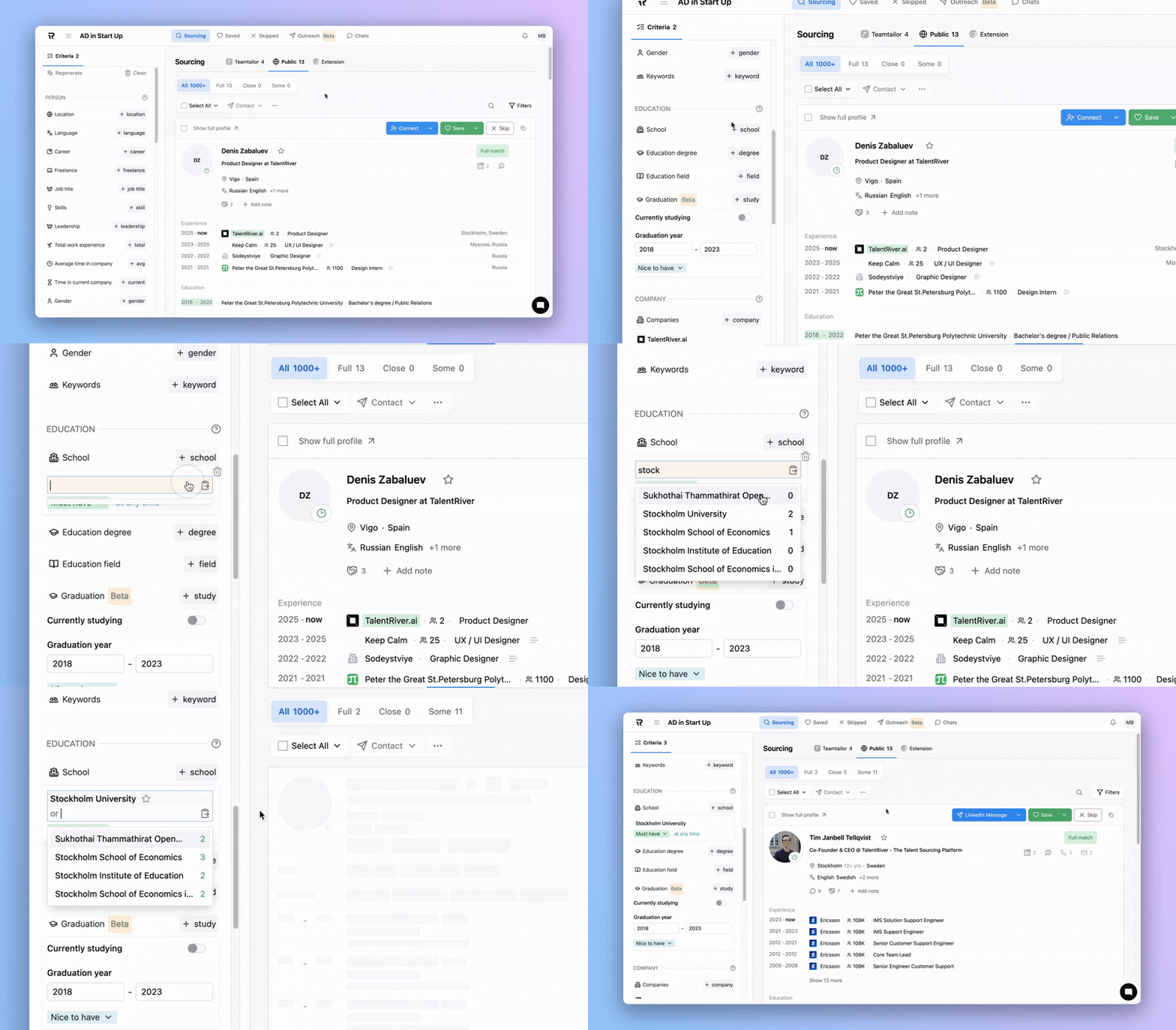
If you select “Nice to have”, candidates who match your chosen education or graduation filters will appear higher in the results.
Candidates without these qualifications will still appear but ranked lower.