
Adding Notes in TalentRiver
Keep your team aligned by adding and viewing notes for any candidate directly in TalentRiver. Notes are perfect for capturing interview feedback, context, or any important updates - all in one place.
Step-by-Step: Access and add notes
Open the candidate’s profile in TalentRiver.
Scroll to the Notes section.
Existing notes are displayed immediately - no extra clicks required.
Add a new note to share updates or interview insights with your team.
This gives a quick overview of each candidate while keeping important details visible to everyone.
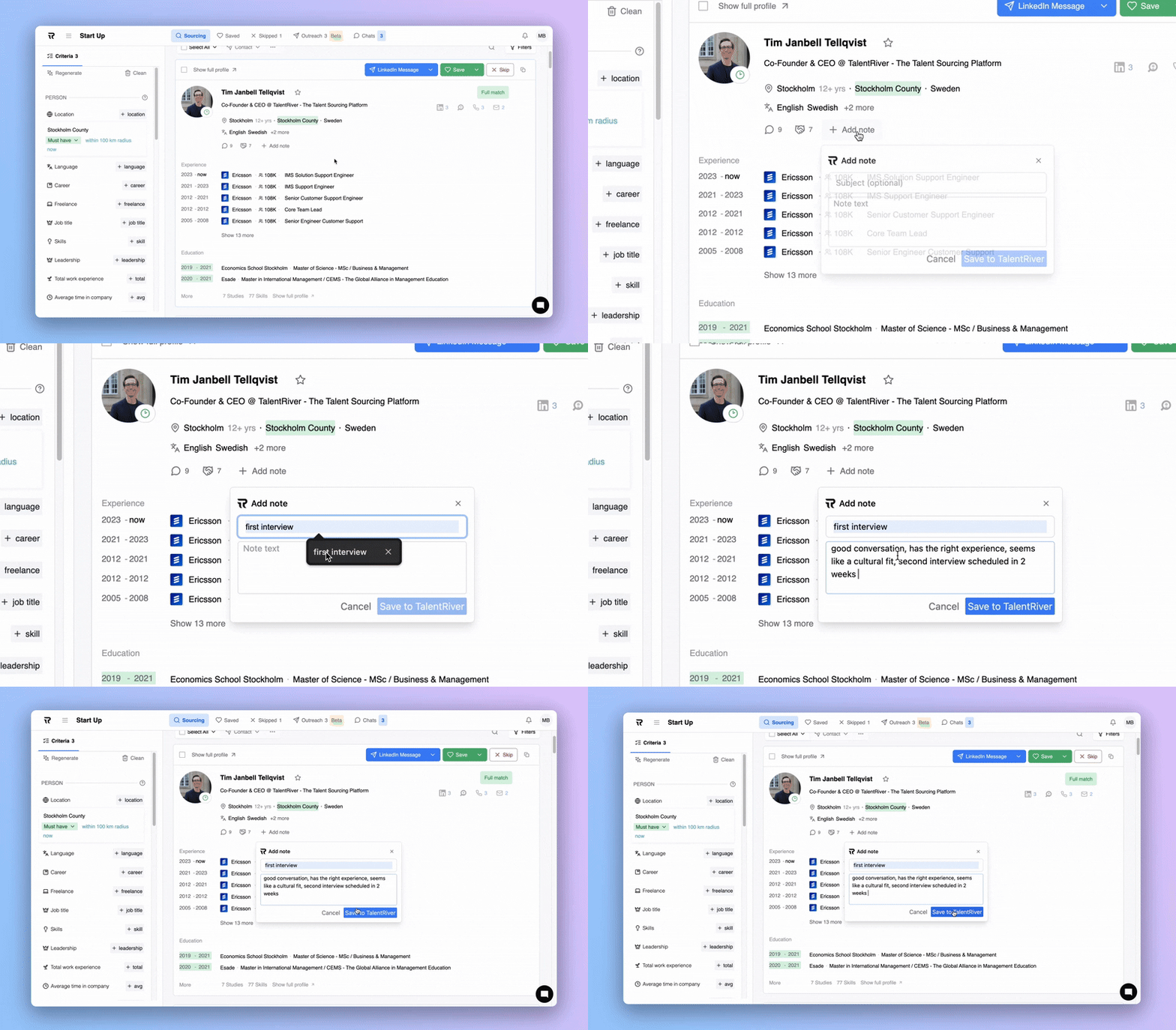
Choose where to save your note
When creating a note, you can control where it is stored:
ATS Note → Syncs automatically to your connected ATS.
TalentRiver Note → Stays in TalentRiver only, visible to your team but not pushed to the ATS.
Switch between the two options when adding a note to manage your workflow and maintain organized records.
Using notes in TalentRiver ensures your team collaborates efficiently and keeps a clear record of every candidate interaction.