
Install, Connect & Use
The TalentRiver Extension lets you source, contact, and manage candidates from LinkedIn - while keeping everything synced in TalentRiver. Use it to add candidates to Assignments, send messages and InMails, and see teammate activity - all without switching tabs.
What you can do with the extension
Send messages from TalentRiver. With your LinkedIn account connected you can send InMails, connection requests, and messages directly - including automated Outreach Sequences.
Keep team visibility. See if a candidate is already connected with a colleague or if a teammate has chatted with them, preventing duplicate outreach.
Find and add candidates to Assignments. Search LinkedIn and save profiles directly into TalentRiver Assignments to keep sourcing organised.
Step-by-Step
Install the Chrome extension
Open the Chrome Web Store and search for TalentRiver Extension, or click the download link in our Help Center. 👉 Download here.
On the extension page click Add to Chrome.
Confirm by clicking Add extension in the popup.
After install, the TalentRiver icon will appear in your browser toolbar.
That’s it - the extension is installed and ready.
Connect your LinkedIn account
Connecting your LinkedIn account enables sending messages and using Outreach Sequences.
Open LinkedIn in the same browser where you installed the extension.
Click the TalentRiver sidebar icon on the right-hand side of the LinkedIn page.
Click Enable Connection.
Follow the prompts to authorise access to your LinkedIn account.
When authorised you’ll see confirmation that your account is connected.
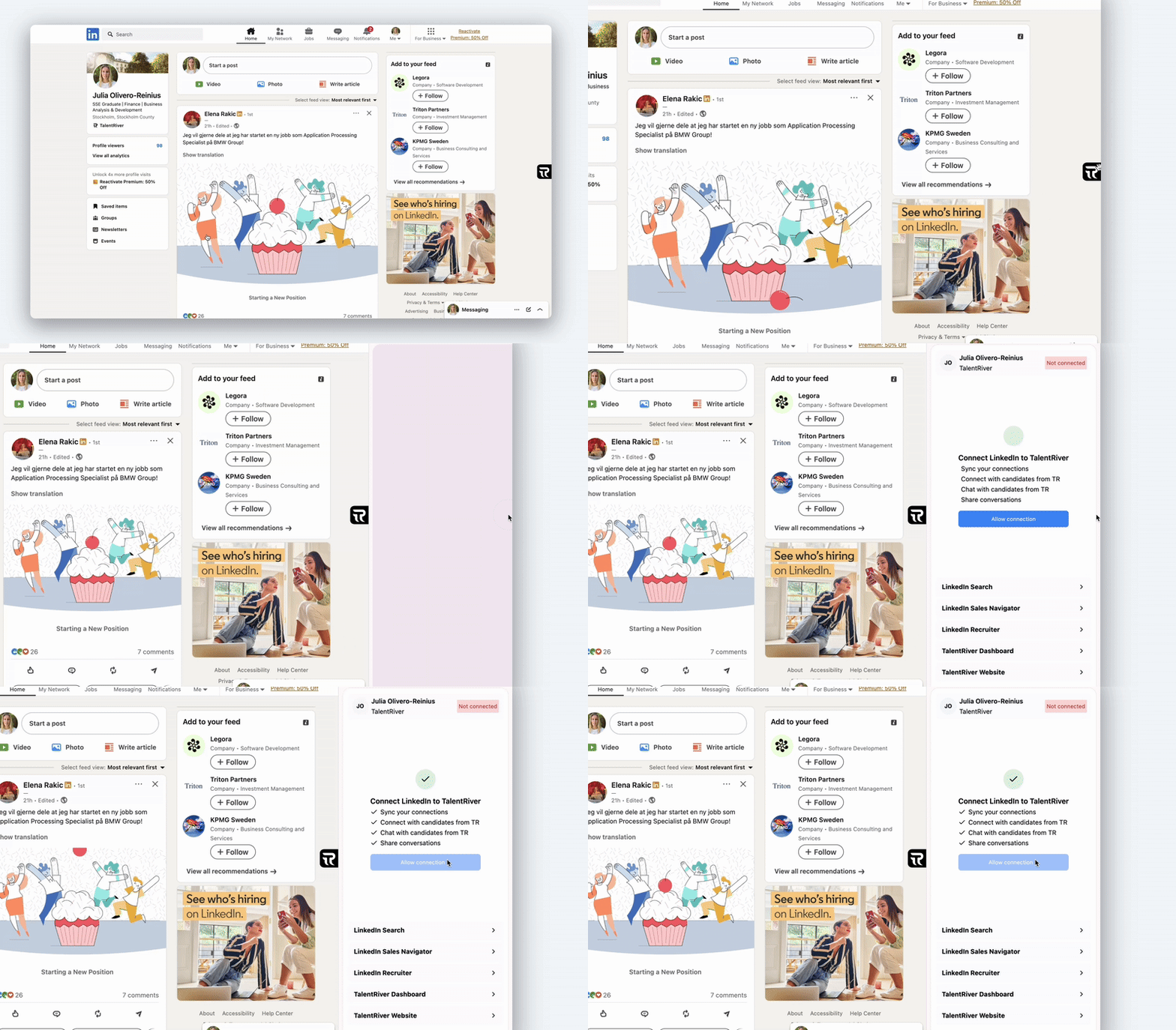
Connecting is required to send messages and to enable Outreach Sequences.
Once connected, you can start sending InMails, connection requests, and messages directly from TalentRiver - and use Outreach Sequences to automate your outreach.
Send messages and use Outreach Sequences
One-off messages
After connecting LinkedIn, send InMails, connection requests or direct messages from the TalentRiver sidebar on a profile.
Automated sequences
Outreach Sequences require each sender to be connected. Sequences will send messages automatically according to the cadence you set in TalentRiver.
Safety and limits
Messages are sent through the connected LinkedIn account, so LinkedIn rate limits and InMail allowances still apply.
Collaborate as a team
When each team member connects their LinkedIn account, TalentRiver shows:
If a candidate is already connected with a colleague.
If a teammate has previously messaged or chatted with that candidate.
This helps avoid duplicate outreach and gives full visibility into candidate relationships.
Add candidates to Assignments (how to)
Browse LinkedIn or LinkedIn Recruiter.
When you find a profile you want, click the TalentRiver icon or use the extension card on the profile page.
Choose Add to Assignment and select the Assignment you want to add the candidate to (or create a new one).
Optionally add tags, notes or the candidate’s status before saving.
This is more for advanced sources like "Open to Work" (if you have a Recruiter Pro license) or candidates in countries TalentRiver do not fully cover.
Troubleshooting & tips
Extension not visible? Make sure you added it to Chrome and haven’t blocked it. Check Chrome Extensions and ensure TalentRiver is enabled.
Connection failed? Sign out of LinkedIn and sign back in, then re-enable the connection from the TalentRiver sidebar.
Messages not sending? Confirm your LinkedIn account is connected, and check your Outreach Sequence settings and LinkedIn sending limits.
Profiles missing fields? Some LinkedIn profiles or privacy settings may hide info - always verify required details before contacting.