
Read ranked candidates and AI opinions
When screening finishes, you’ll see a ranked pool under the project’s Agents tab. Strongest fits sit at the top — but the full list is wider than the first screen. Learn the verdict ladder, open Screening for the why, and sample below the top before you trust the brief.
What you see in the pool
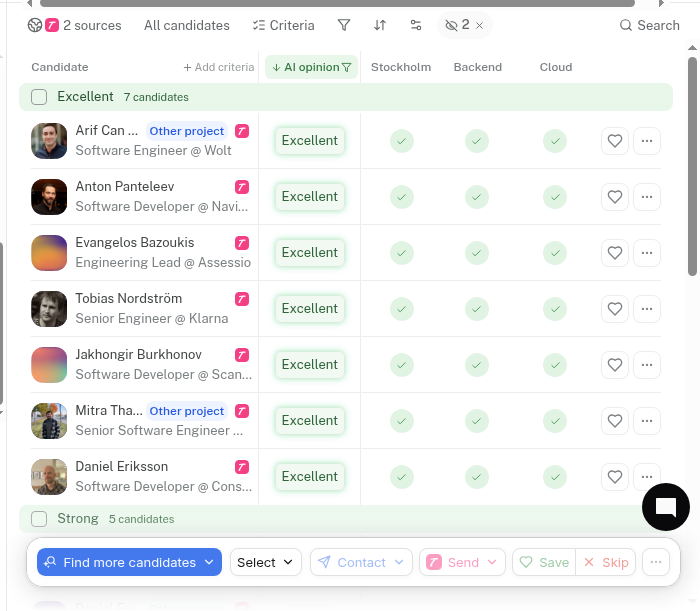
Each row typically shows:
Name, current role, and company
An AI opinion verdict
Criterion match indicators
ATS info when relevant
A heart / Save control and more actions
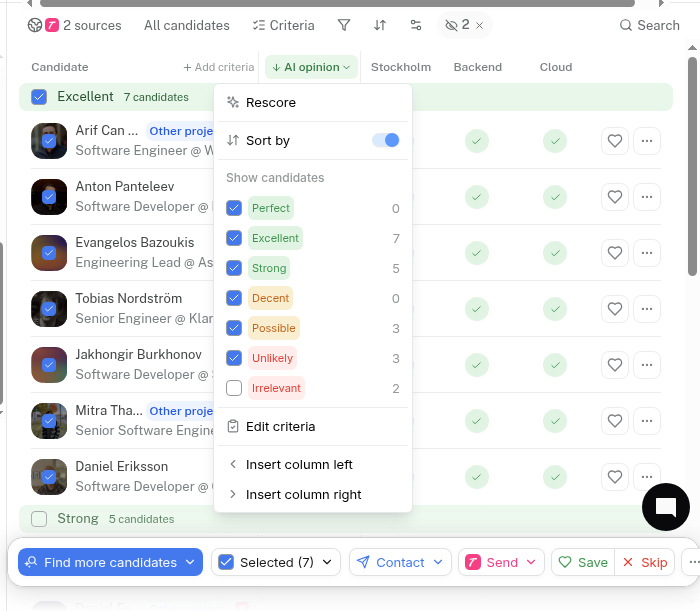
Above the table you’ll find tools such as All candidates, Criteria / Add criteria, Filters, Sort, View settings, in-pool Search, Clear verdict filters, Find more candidates, and a source count.
At the bottom, a bulk bar offers Select, Contact, Save, and Skip — those stay disabled until you select people.
Tip: Start by skimming names and AI opinions. Open profiles only after you’ve spotted the pattern of who rises to the top.
The full AI opinion ladder
TalentRiver groups people by overall AI opinion. From strongest to weakest you’ll typically see:
Perfect
Excellent
Strong
Decent
Possible (you may see numbered bands such as Possible 6 and Possible 5)
Counts next to each group tell you how deep that band is. Do not stop at Perfect and Excellent alone — the market for your role often lives partly in Strong, Decent, and Possible.
Tip: Scroll past the top on every new search. If the lower bands look wrong, the brief or criteria need work — not just more outreach to the first ten names.
Overall Perfect can still be Maybe on one criterion
Open a candidate to see the profile overlay. On the Screening tab you’ll get an overall score and verdict (for example 10 Perfect) plus a line for each criterion — often Match or Maybe, with a short explanation.
A person can be Perfect overall and still Maybe on one must-have (for example a skill listed without clear expert-level proof). That is normal. The overall verdict is a summary; each criterion is a separate judgment for you to weigh.
Use Next and Back to move between people without returning to the table every time.
Tip: Decide which criteria are deal-breakers for you. A Maybe on location might be fine; a Maybe on a hard skill might mean Save for later or Skip.
How to review efficiently
A practical pass for most roles:
Skim the Perfect and Excellent bands for shape and seniority.
Open 3–5 profiles and read Screening — check that why matches what you told the agent.
Scroll into Strong, Decent, and Possible. Spot-check a few. If those bands look off, refine priorities or criteria before you contact anyone.
Use Filters, Sort, and verdict filters to focus the table when the pool is large.
Save people worth a conversation to the Shortlist. Skip clear mismatches so they hide from this search.
Tip: If Perfect overall feels inflated, look at the Maybe lines first. One weak criterion with a strong overall score is a signal to read carefully — not a bug.
Healthy habits
Trust the ranking as a starting order, not a hiring decision.
Read Screening before you Contact — the “why” saves awkward first messages.
If the whole pool feels off, tighten priorities in chat and run another pass with Find more candidates.
Save as you go so Shortlist stays the source of truth for next steps.