
Start a search with Agents
TalentRiver helps you find and contact candidates with Agents. Start from Home: describe the role in your preferred language (or paste a LinkedIn profile you like), answer a couple of clarifying questions, attach the search to a project, choose search depth, then review a ranked list of people.
Start from Home
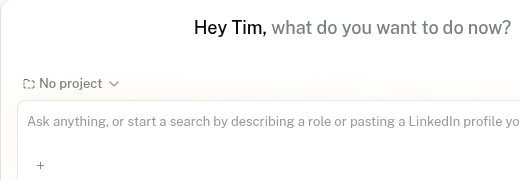
Open Home in the left sidebar.
You’ll see a greeting and a large ask box.
Optionally pick a project next to the box (it may say No project).
Describe the role — title, location, must-haves — or paste a LinkedIn profile you want similar people to. Write this in your preferred language.
Press Enter.
Tip: A short, clear brief works better than a long job ad. Mentions of tools, seniority, and industry help the ranking more than fluffy company copy.
Tell the agent what to prioritize
The agent may ask what matters most — tools, industry, years of experience, and so on. Reply in everyday language, in any language.
Example: Prioritize Figma, design systems, and at least five years’ experience in B2B SaaS.
Tip: Say what you’d reject as well as what you want (for example “agency-only portfolios are a weak fit”). That saves scroll time later.
Attach the search to a project or ATS job
You’ll see Choose a project to continue, with + New project and Existing project.
Use Existing project when:
You already have this role open in TalentRiver, or
The job already exists in your ATS (for example Teamtailor, Ponty, or Invenias)
That keeps the pipeline synced so you can later send candidates into the right ATS job. Prefer + New project only when the role does not exist yet.
Tip: If the ATS job is missing from the list, refresh so TalentRiver can see it — don’t invent a duplicate project.
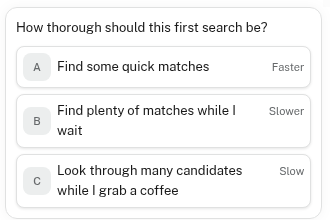
Choose how thorough the first search should be
A — Find some quick matches — you need a first shortlist fast
B — Find plenty of matches while I wait — you’re at your desk and want a fuller pool
C — Look through many candidates while I grab a coffee — you want the deepest first pass
You can always click Find more candidates later.
Tip: Start with A or B on a new brief. Go deep once you’ve checked the ranking looks right.
Review ranked candidates
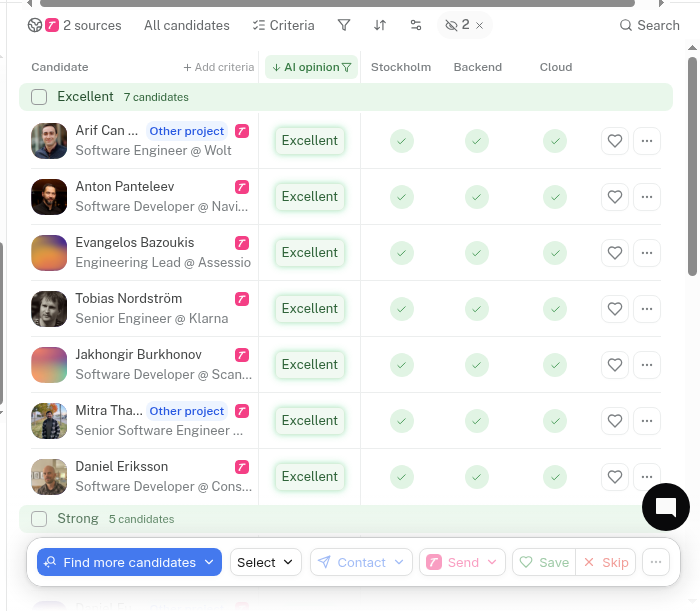
The strongest matches sit at the top. Scroll to see the full range — including Perfect, Excellent, Strong, Decent, and Possible.
Open someone to see Screening (why they matched) and Chats (outreach). A person can look strong overall and still be a Maybe on one criterion — that’s normal; use your judgment.
Tip: Skim the top band first, then sample a few lower ones. If the lower band looks wrong, tighten your priorities before you burn outreach.
Save, Skip, and Contact
Save — moves them to the Shortlist for this project
Skip — hides them from this search
Contact — LinkedIn connection request, InMail, email, or add to a sequence (nothing sends until you confirm)
Tip: Save your “yes, worth a chat” people before you start messaging. Skip clear mismatches early so the pool stays usable.
Healthy habits
Start from Home with No project when you’re exploring; attach when the role is clear.
Answer clarifying questions with hard must-haves and soft preferences.
Match search depth to how much time you have right now.
Save before you contact — a clean Shortlist beats memory.