Find your way around projects and Agents
TalentRiver is built around projects and Agents. A project holds the role you’re hiring for. An Agent workspace is where you run a search, review ranked candidates, and decide who to save or contact.
Start from Home
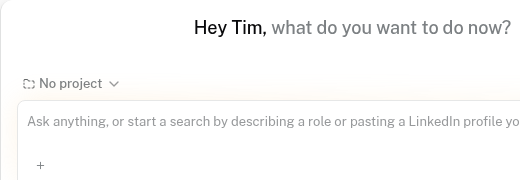
Home is your front door. Use the ask box at the top to describe the role — a job description, a few must-haves, or a short note in any language. The box includes a project selector (often set to No project). Starting from Home lets you attach the search to an Existing project or create a New project.
TalentRiver opens the search as an Agents workspace under that project.
Projects
Open All projects or a project in the left sidebar to see everything tied to that role.
A project can be:
A job imported from your connected ATS (TalentRiver pulls the job ad so you can start searching from that description)
A project you create inside TalentRiver
Inside a project, the tabs are Agents, Search, Shortlist, Sequence, and Chat.
Tip: Keep one project per role so shortlists and outreach stay tidy.
Attach a search to a project or ATS job
When the agent asks you to choose a project, pick:
New project — start a TalentRiver project for this search
Existing project — attach to a project you already have, including a job that already exists in your ATS
Existing project is not just a folder. Use it when the role already lives in TalentRiver or in your ATS, so the pipeline stays synced and you can send candidates there later.
TalentRiver works with the ATSs you connect — for example Teamtailor, Ponty, Invenias, and others your workspace uses. Attach to the right ATS job / project, not one vendor’s name.
Tip: Prefer an ATS job that matches the role so the job ad can seed the search.
Choose search depth
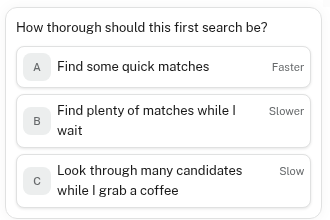
When TalentRiver asks how thorough to be, choose what fits your timing:
A — Find some quick matches — a few candidates, faster
B — Find plenty of matches while I wait — more candidates while you wait
C — Look through many candidates while I grab a coffee — a deeper search
You can use Find more candidates later if you want another pass.
Review results and move people forward
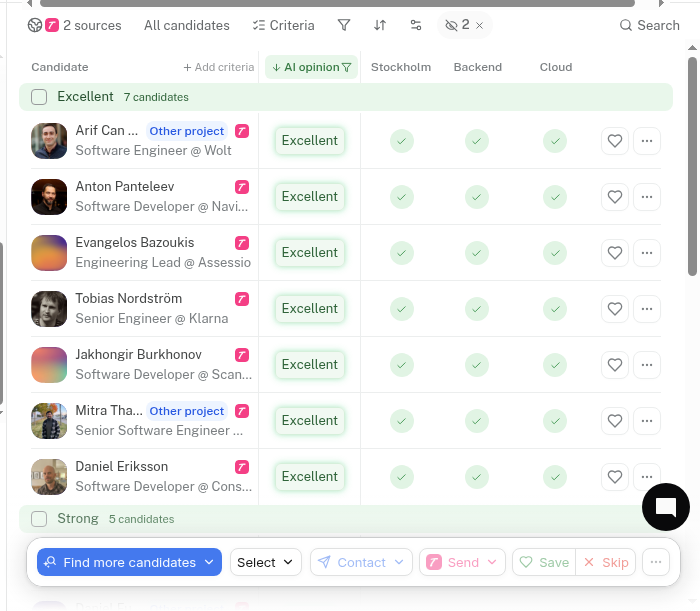
Candidates appear ranked with AI opinions (best matches at the top — scroll for the full range). Overall opinion and per-criterion Match/Maybe are separate judgments.
As you review:
Save — add to the Shortlist
Skip — hide from that search
Contact — reach out or add to a sequence when you’re ready (nothing sends until you confirm)
The everyday loop is: search → results → save and move candidates forward → iterate in chat.
Healthy habits
Describe the role from Home when you’re not sure where to start.
Attach to the matching ATS job when it already exists — keep the pipeline synced.
Save as you go, then contact or sequence only when the message is ready.
For building outreach sequences, see Run an outreach sequence — this article stops at finding and shortlisting.